Developers
What 3D artists need to know before uploading to Miris

Max Good
April 22, 2026
•
7 min read
 Web SDKREST APICLIPlayerPlayground

Miris streams high-fidelity 3D content to any device, with no downloads required.
This guide walks through what to prepare before uploading, including working with USD, previewing your asset, tagging, and generating a streamable version.
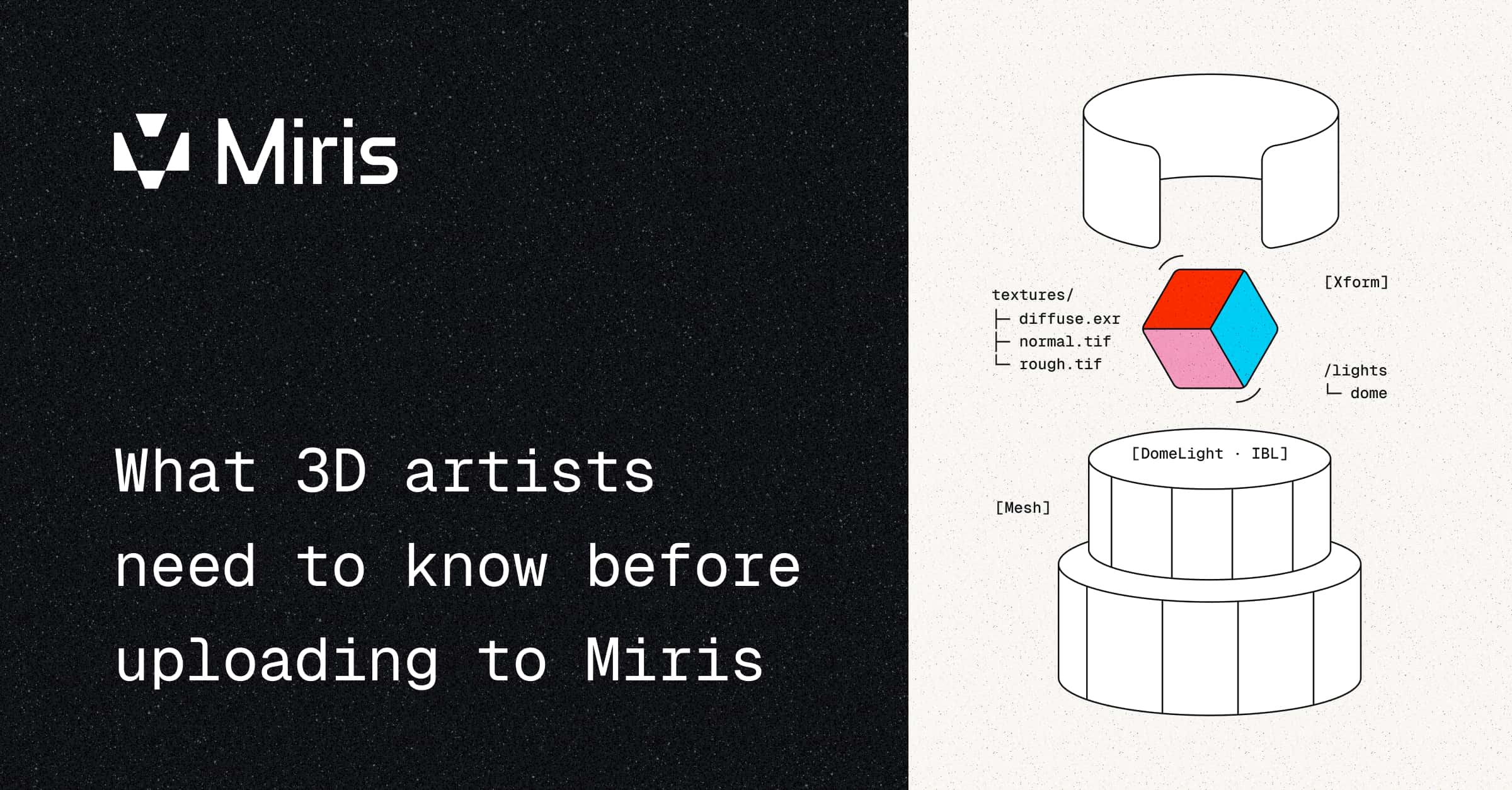
Miris takes 3D content in the flexible OpenUSD (Universal Scene Description) format. If your current workflow does not use USD, you can easily convert your assets. Common formats such as OBJ, FBX, GLB, and GLTF can be imported into widely used 3D creation software such as Maya, Houdini, or Blender, and then exported as USD, USDA, USDC, or USDZ. Miris also supports key USD features, including IBL, skeletons, USD Preview Surface, and MaterialX.
If Maya, Blender, or Houdini are being used to create assets, you can follow these steps to export them.
For best results, use USD Preview Surface or MaterialX as your shading model. USD Preview Surface provides a standard material definition that will render consistently across tools and engines, ensuring reliable, predictable results. MaterialX supports more complex shading networks in rendering workflows. Verify your materials are correctly assigned and exported, and avoid render-specific shaders that may not translate properly.
One of the greatest benefits of Miris is that you do not need to optimize your asset for delivery. Reducing polygon counts or aggressively compressing textures before uploading is not necessary with Miris' conditioning pipeline, which is designed to process high-fidelity inputs.
Miris streams your assets at the highest fidelity supported by the device and network conditions. Focus on building assets at the quality you intend for the final render, not for real-time constraints.

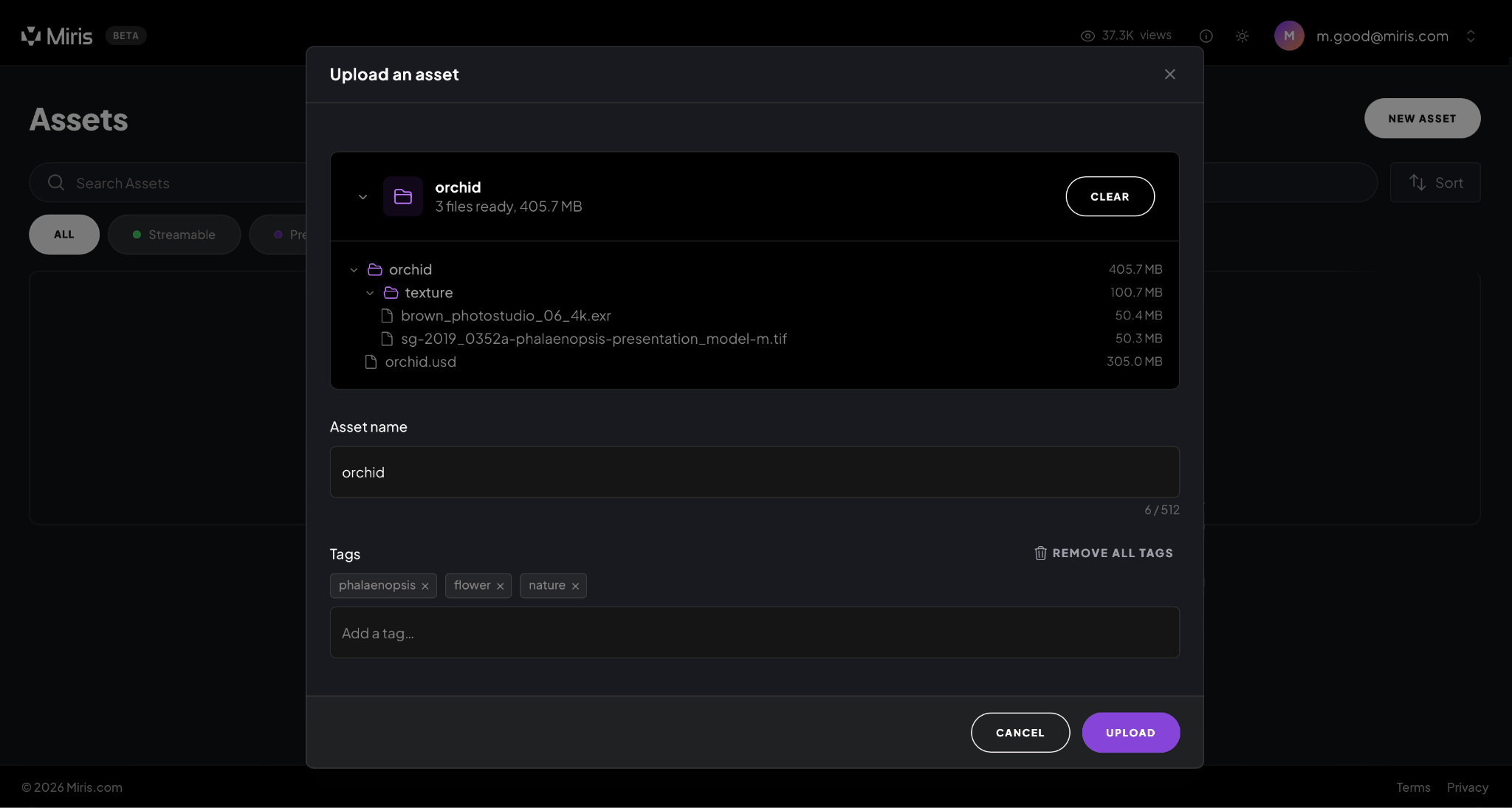
Prior to uploading, you can pick a name that you will recognize later, or the system will use your file name by default. Tags are a helpful way for you to search for categories of assets.
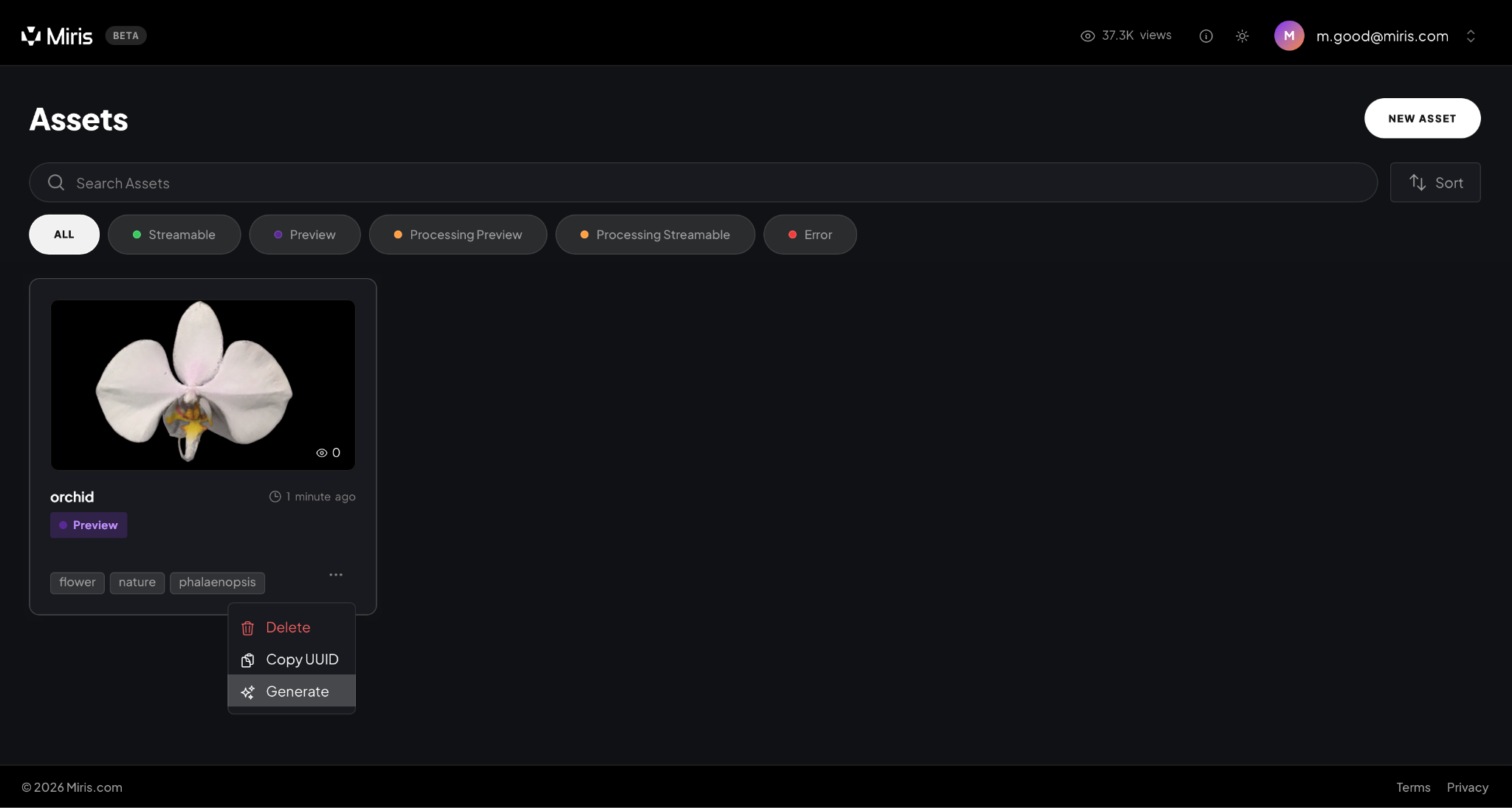
After uploading, Miris will generate a preview version of your assets within a few minutes. The preview cannot be streamed and is lower resolution, but is crucial for making sure materials, scale, and lighting look as intended. If you would like to make changes, you can revise your asset and reupload. Once you are satisfied with the results, click ‘Generate’ to begin processing your streamable asset.
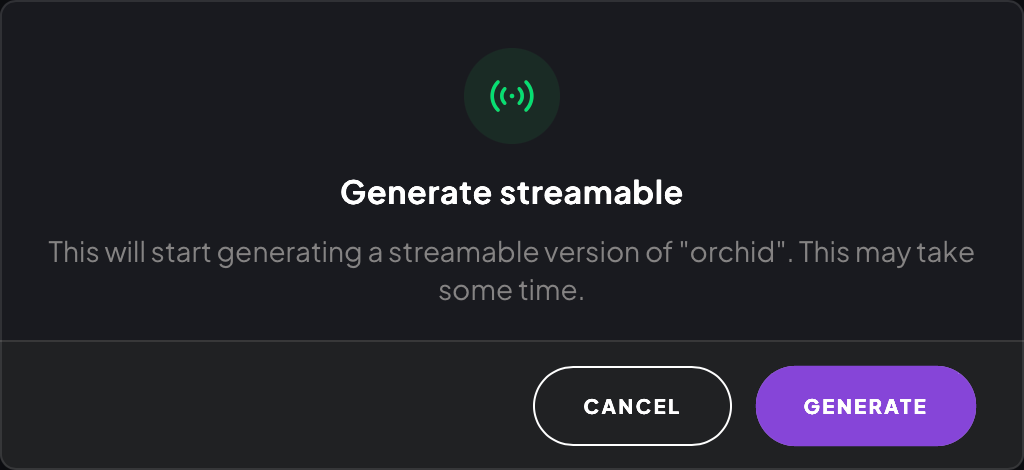
You can confirm by clicking Generate again. This step can take anywhere from minutes to hours.
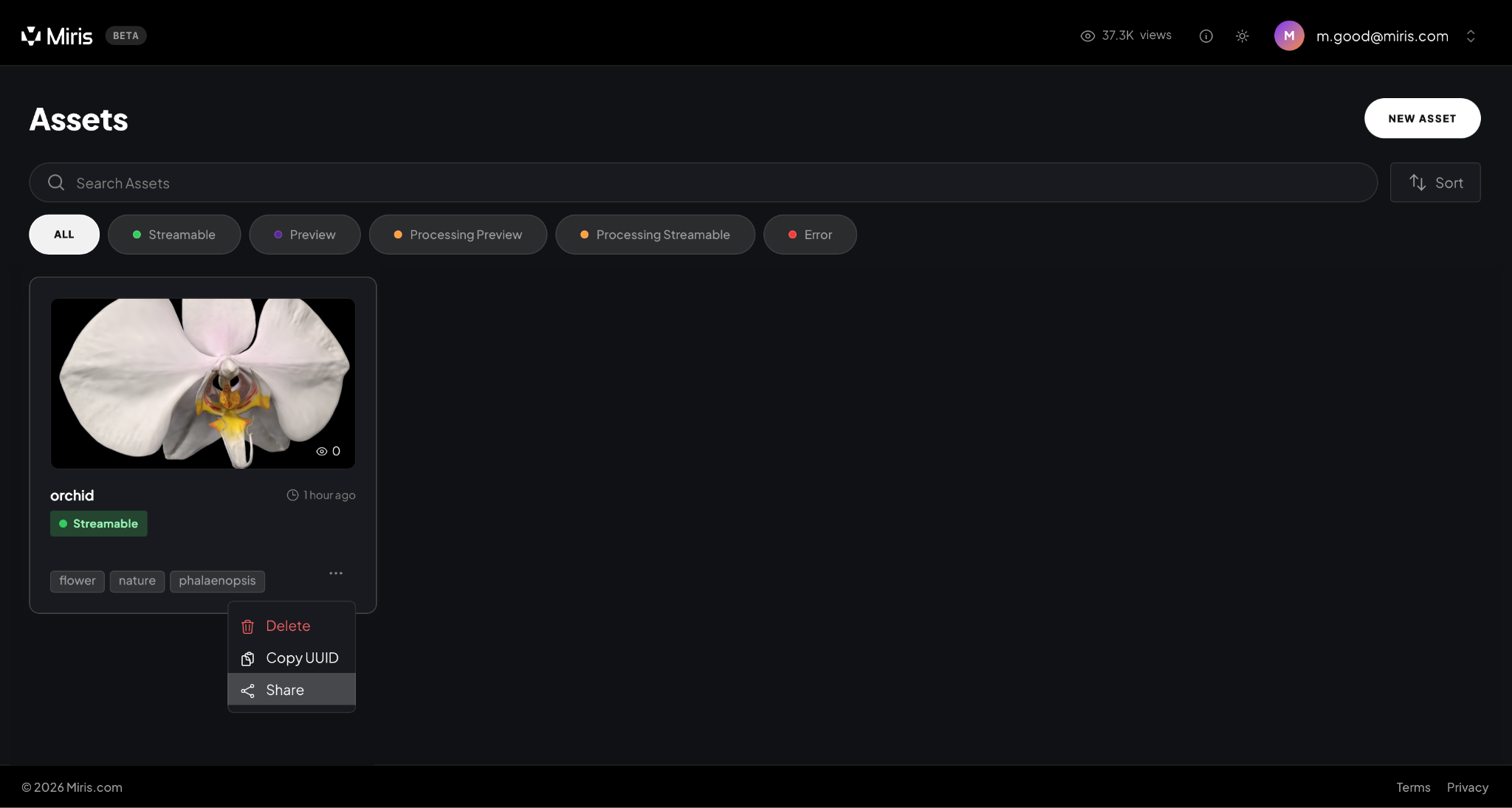
When the streamable asset is ready, your work is instantly accessible. You can create a shareable link for any device with a browser by clicking ‘Share’.
Set an expiration or leave it as Never and click Generate Link.
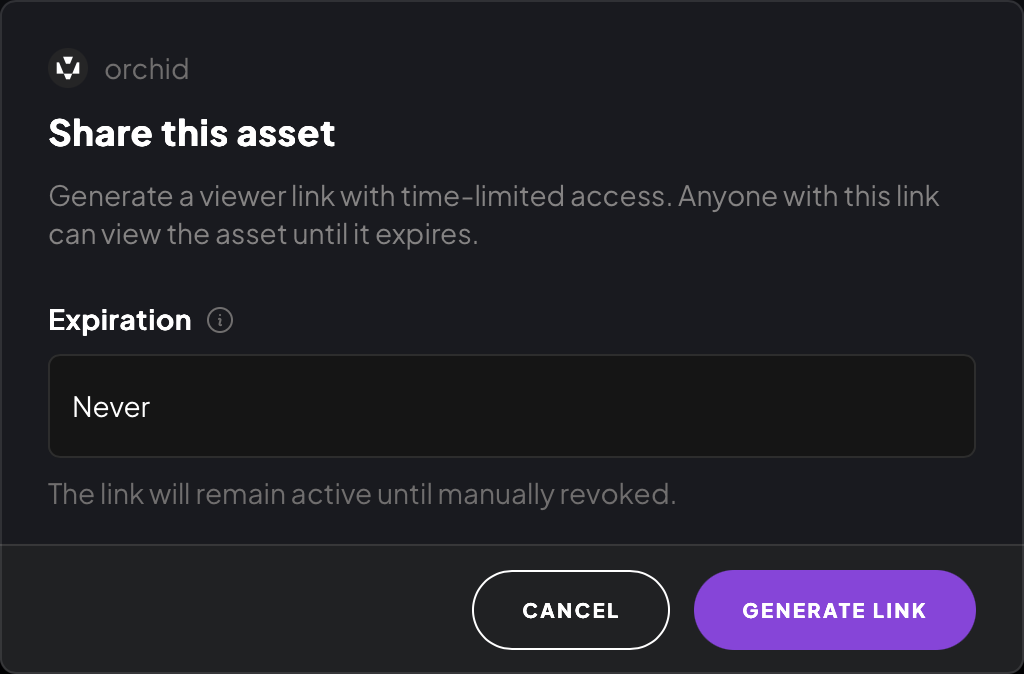
Anyone with the link can view the asset directly in their browser. Copy the link to share access.

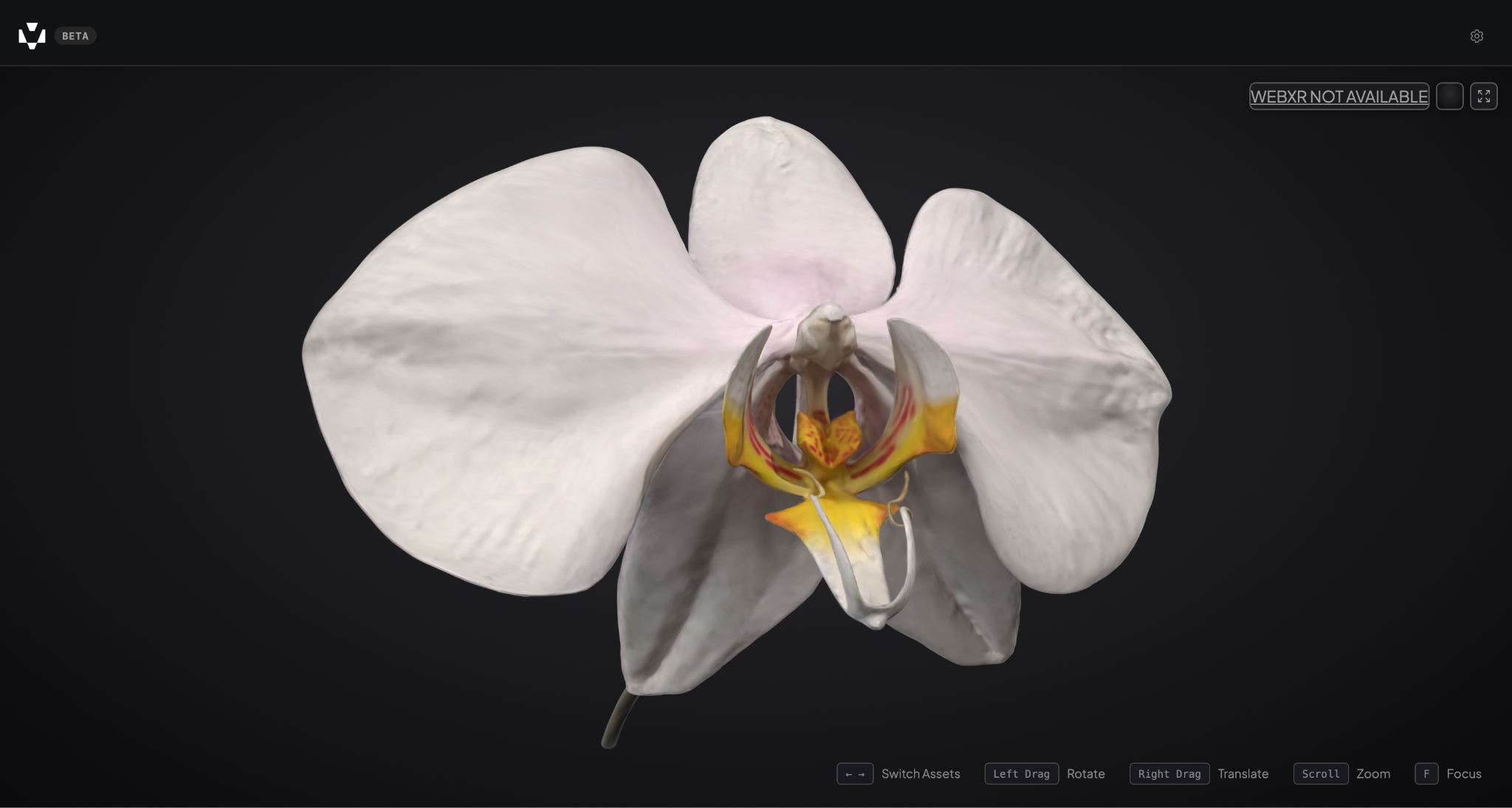
Others can explore your asset with full fidelity without downloading anything or requiring installation. For more control, you can use the Web SDK to fully customize how your content is presented and interacted with. For example, someone could create an interactive experience where certain elements are toggled on and off or the asset can be embedded into their own site.
Before you begin, it is important to be aware of a few current limitations. Animation, interior environments, and formats other than USD are not supported at this time. We are actively working to expand support for these areas.
Helpful links to get you started:
Miris Documentation - https://docs.miris.com/
Miris playground - https://playground.miris.com/
Overview of OpenUSD - https://openusd.org/release/index.html
Ready to stream your first asset? Join the beta today.